Use the Dayforce app or website to see available shifts for pickup and to initiate a shift swap with a coworker.
Training Videos:
Shift Bidding Using the Dayforce App
Shift Bidding using the Dayforce Website (Desktop)
Shift Swapping Using the Dayforce App
Shift Swapping Using the Dayforce Website
Shift Swapping Overview
Employees have the option to exchange shifts with co-workers using the Dayforce system. The process is outlined below:
- Request Submission
- Initiate the shift swap request in Dayforce.
- The request will be sent to your co-worker for their approval.
- Approval Process
- After your co-worker approves the swap, the request will be forwarded to the manager for final approval in Dayforce.
- The shift swap is not official until the manager approves it.
- Responsibilities
- You remain responsible for your originally scheduled shift until the manager approves the swap.
- Rules for Shift Swapping
- Shift swaps must be direct exchanges; dropping a shift for another co-worker to pick up is not permitted. If you need time off, you will still be required to submit the appropriate request through your manager
- Manager approval in Dayforce is required before the swap is finalized.
- A maximum of two shift swaps is allowed per pay period.
- The swap must be initiated at least 72 hours in advance, and the manager must approve it no later than 48 hours before the shift begins.
Shift Bidding (Pickup) Overview
Employees can bid on available shifts through Dayforce. The process is as follows:
- Bidding Process
- View available open shifts and submit your bid through Dayforce.
- Manager Selection
- Once bids are received, the manager will determine who will be assigned the open shift.
Shifts available within a 24 period will be through text messages only, no bids will go out through Dayforce.
How to download the Dayforce App
You can use the Dayforce app to view your calendar and schedule, paystubs and T4’s, benefit information, employment forms, availability updates, and more. You will also be able to use the app to do the shift swapping and shift bidding (pickup).
iPhone QR Code to Download the APP
.png)
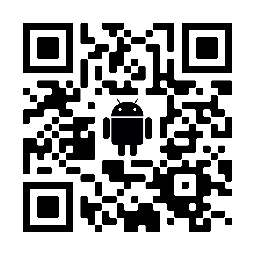
Android QR Code to Download the APP
How to turn on notifications on your Dayforce App
Turning on notifications on your Dayforce App ensures you don’t miss any push notifications, including about shifts available for pickup
Steps for iPhone:
- On the Home screen, tap your avatar in the top right corner to open the Profile menu.
- In the Preferences section, tap Settings.
- Tap Push Notification Preferences.
- Tap the Allow Push Notifications switch to enable or disable notifications.
- Tap Save.
Steps for Android:
- Tap the Navigation button (|||) to open the navigation menu.
- Tap Settings and then tap Notifications.
- Tap the Enable Notifications switch to enable or disable notifications.
- Tap Save.